Keyboard Shortcuts
Setup & Usage9
Project2
Every keyboard shortcut, including the Standard and Vim presets.
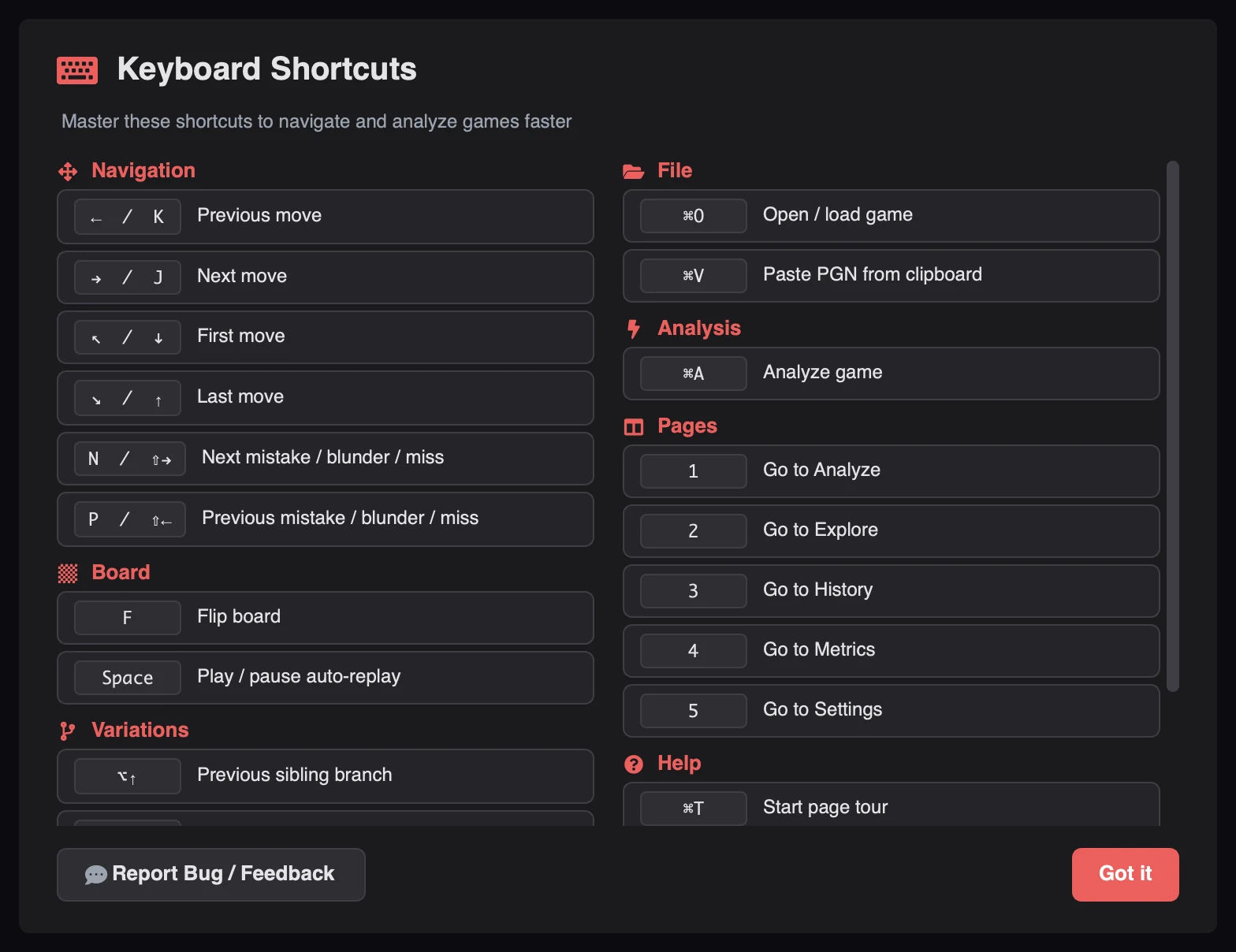
Open the in-app cheat sheet with F1 or ?, from the sidebar help button, or from
Settings → Keyboard.
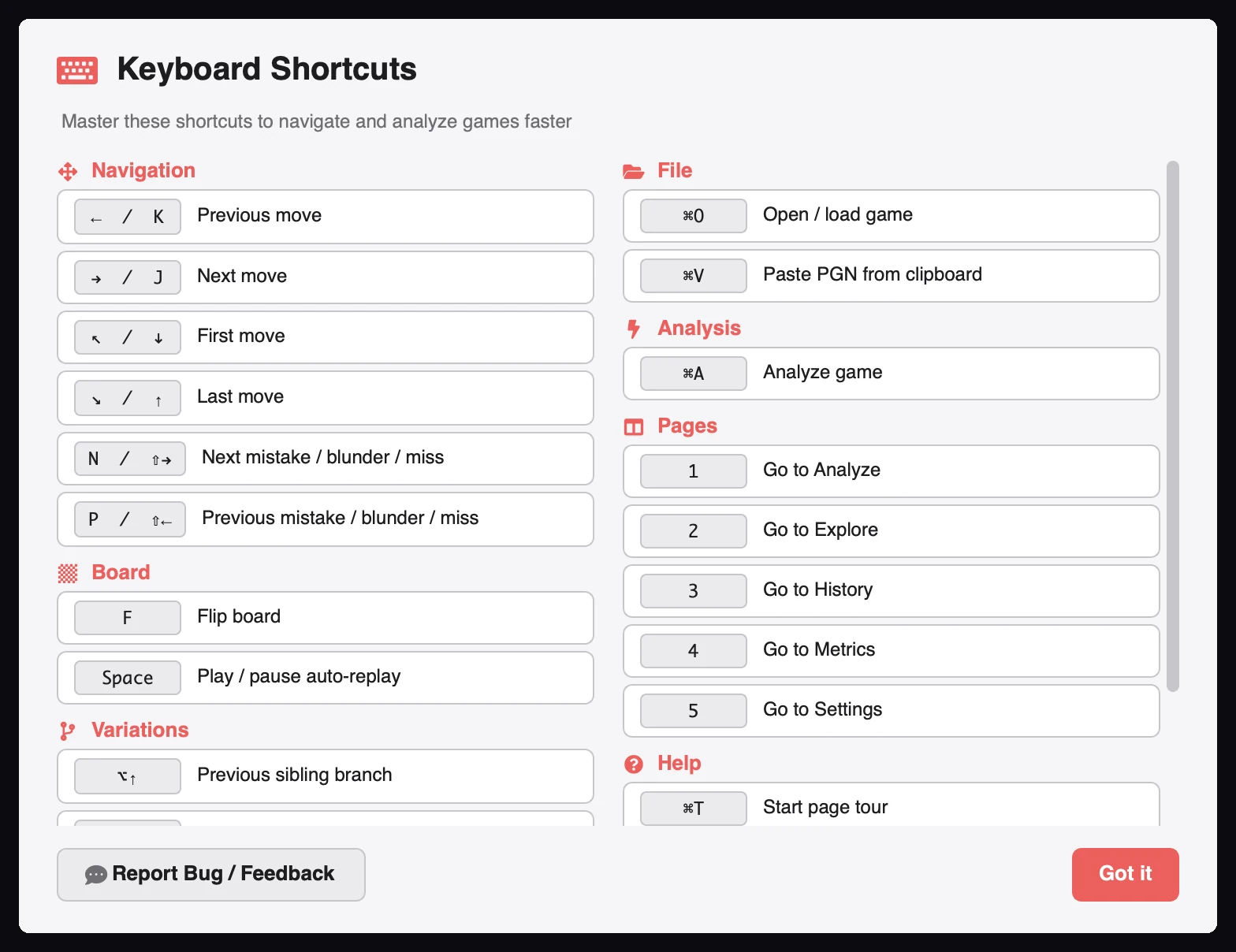
This screenshot was captured on macOS, so the modifier key appears as
⌘. On Windows and Linux the same shortcuts useCtrl.
| Action | Standard | Vim |
|---|---|---|
| Previous move | ← or K | ←, K, or H |
| Next move | → or J | →, J, or L |
| First move | Home or ↓ | Home or ↓ |
| Last move | End or ↑ | End or ↑ |
| Next mistake, blunder, or miss | N or Shift+→ | N or Shift+→ |
| Previous mistake, blunder, or miss | P or Shift+← | P or Shift+← |
| Action | Keys |
|---|---|
| Flip board | F |
| Play or pause auto-replay | Space |
| Action | Keys |
|---|---|
| Previous sibling branch | Alt+↑ |
| Next sibling branch | Alt+↓ |
| Exit variation or leave the Explorer | Esc |
| Action | Keys |
|---|---|
| Open or load a game | Ctrl+O |
| Paste PGN from the clipboard | Ctrl+V |
| Start analysis | Ctrl+A |
| Page | Keys |
|---|---|
| Analyze | 1 |
| Explorer | 2 |
| History | 3 |
| Metrics | 4 |
| Settings | 5 |
| Action | Keys |
|---|---|
| Shortcut cheat sheet | F1 or ? |
| Start the page tour | Ctrl+T |
The preset is stored as shortcut_preset and can be changed in Settings → Keyboard.
| Preset | Effect |
|---|---|
| Standard (default) | Arrows plus J / K for next and previous |
| Vim | Adds H and L to the previous and next bindings |
Typing in a text field never triggers these shortcuts.
Related guides
Download Chess Analyzer Pro for Windows, macOS, or Linux. 100% free, private, and open-source.