Loading Games
Back to Docs
Download Free
All game importing is handled through a single Load Game dialog. Click the button in the sidebar or press Ctrl+O to open it.
The dialog runs queries asynchronously -the interface stays responsive even when fetching from remote APIs. If multiple games are returned, an inline selection list shows metadata for each game (date, result, players, ratings, move count, time control).
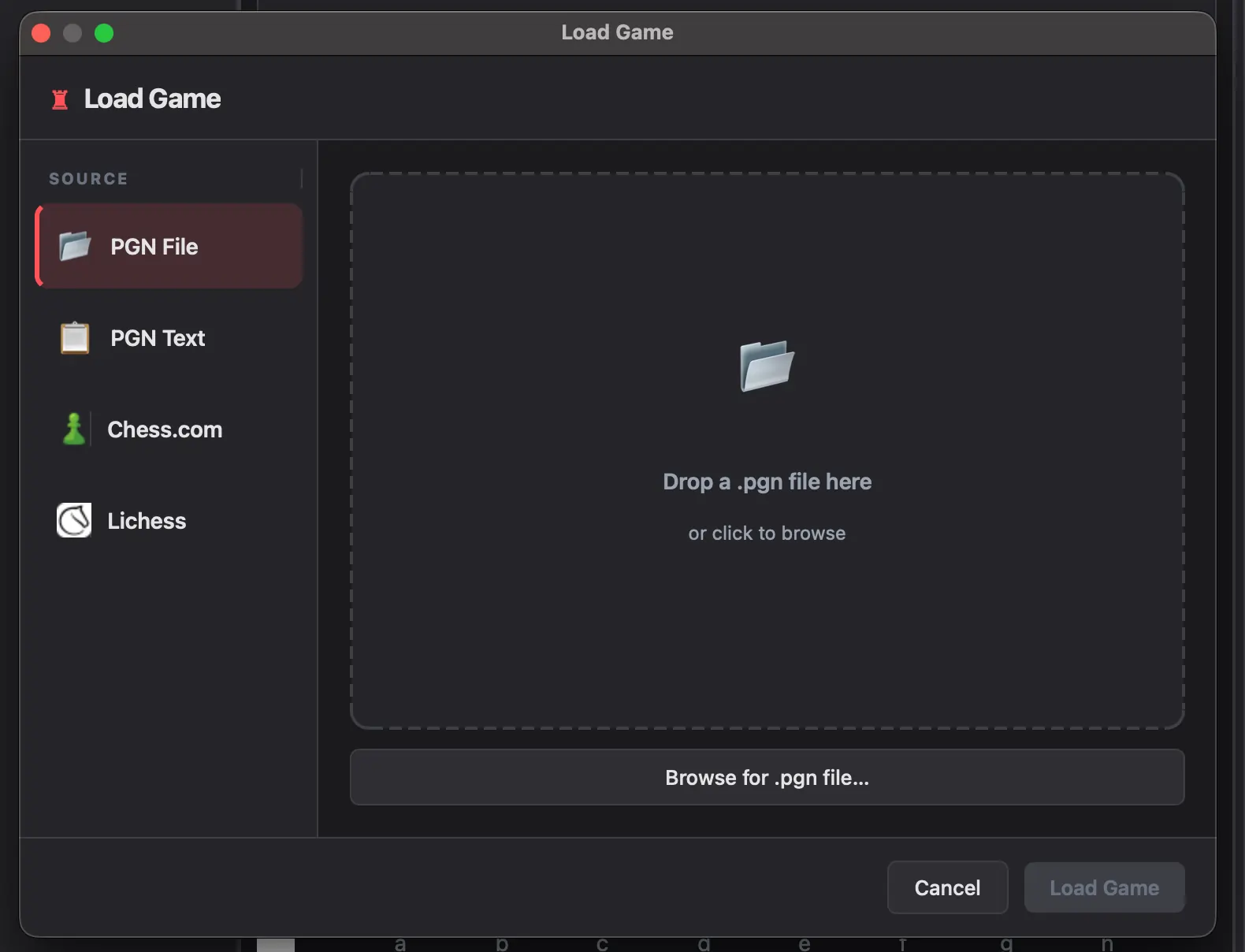 Unified Load Game dialog with source tabs
PGN File
Import a standard .pgn file from your computer.
- Click the PGN File tab.
- Drag and drop a
.pgnfile into the drop zone, or click to browse. - If the file contains multiple games, they appear in a list -double-click the one you want.
Supports single-game and multi-game PGN files. No size limit.
PGN File tab with drag-and-drop zone
PGN Text
Paste raw PGN notation directly.
- Click the PGN Text tab.
- Paste PGN text into the input area.
- Click Parse PGN.
You can also press Ctrl+V anywhere in the app to auto-detect and parse clipboard PGN text.
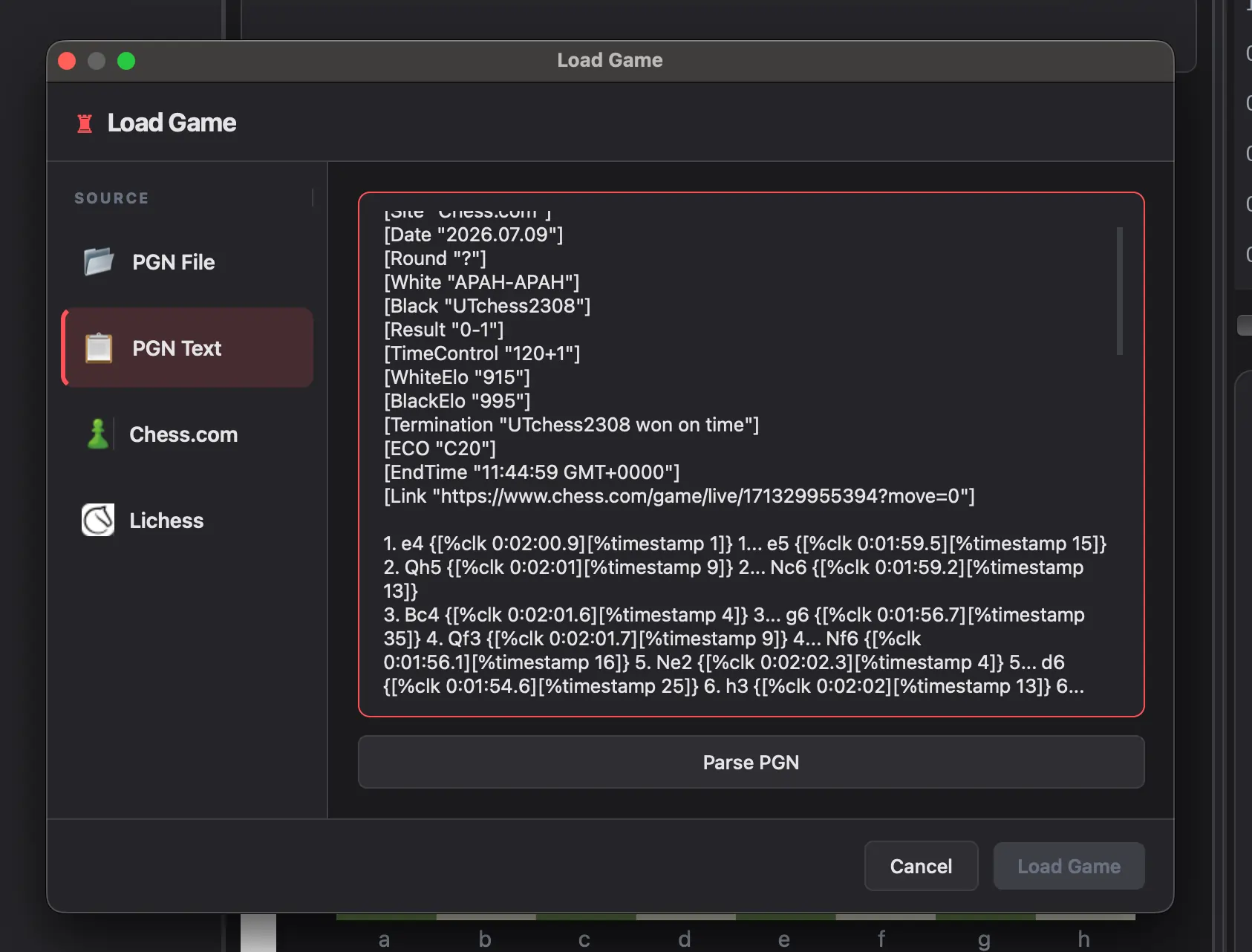 PGN Text tab with paste area
Chess.com
Import games from Chess.com by username, archive date, or game URL.
By Username & Date Range
- Click the Chess.com tab.
- Enter a Chess.com username.
- Optionally select a specific Year and Month to pull historical archives (v2.3.0+), or fetch recent games.
- Click Fetch Games.
- Select a game from the list and click Load Game.
By Game URL or ID
Paste a direct game URL or Game ID such as:
https://www.chess.com/game/live/123456789https://www.chess.com/game/daily/123456789123456789
The dialog extracts the game ID and fetches that specific game immediately. Once loaded, games are cached locally on your device for fast offline replay.
Lichess
Import games from Lichess by username, archive date, or game URL.
By Username & Date Range
- Click the Lichess tab.
- Enter a Lichess username.
- Optionally filter archives by Year and Month (v2.3.0+), or fetch recent games.
- Click Fetch Games.
- Select a game from the list.
By Game URL or ID
Paste a direct game URL or Game ID such as https://lichess.org/AbCdEfGh or AbCdEfGh. The 8-character game ID is extracted automatically.
Note: A Lichess API token is recommended for better rate limits and access to private games. Configure it in Settings → API Configuration. Loaded games are cached locally for instant offline access.
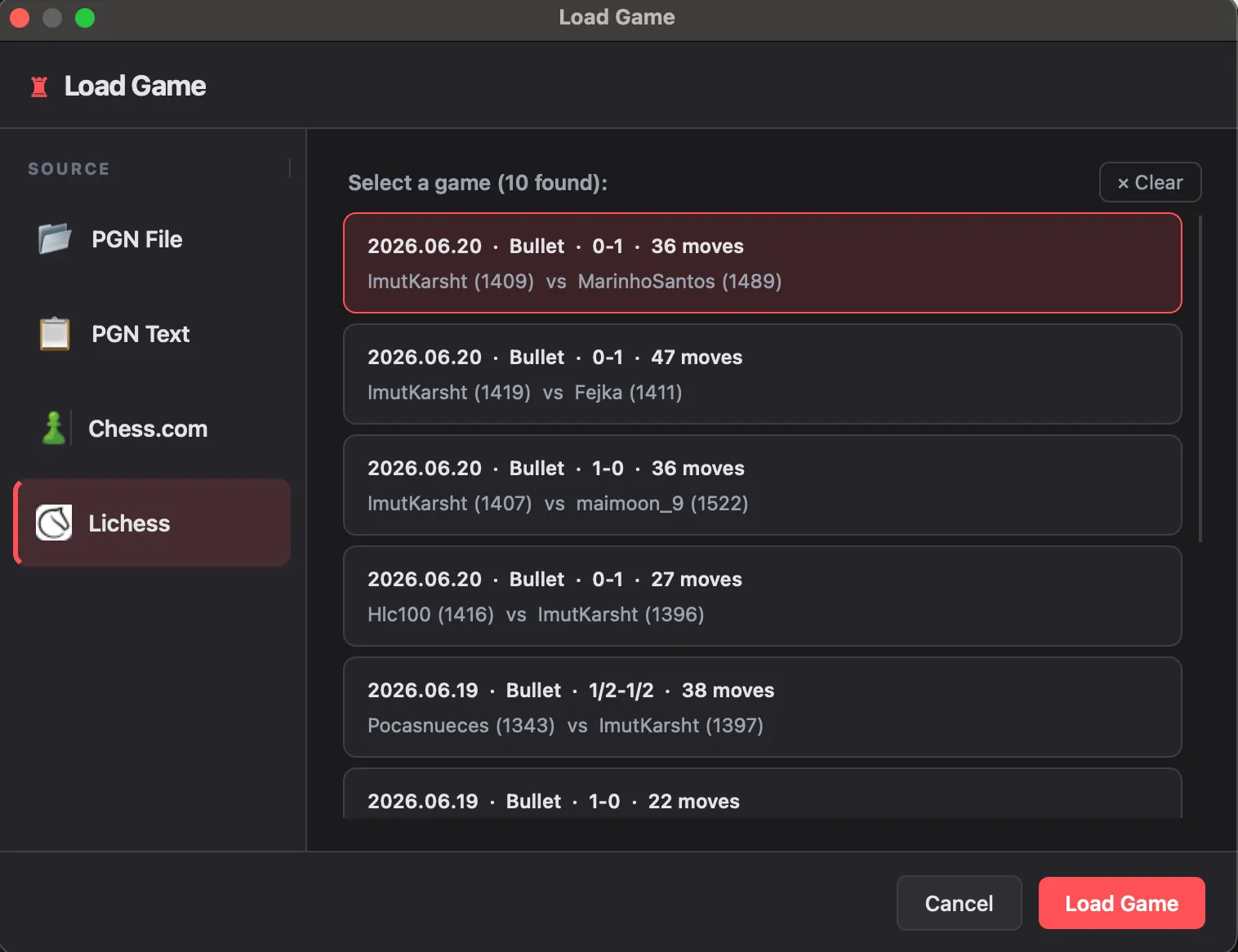 Lichess import tab with username field
Game Selection
When multiple games are returned (from username lookups or multi-game PGN files), they appear in a selection list showing:
- Date played
- White and Black player names
- Result (1-0, 0-1, ½-½)
- Time control type (Bullet, Blitz, Rapid, Classical)
- Number of moves
- Player ratings (when available)
Double-click a game or select it and click Load Game at the bottom.
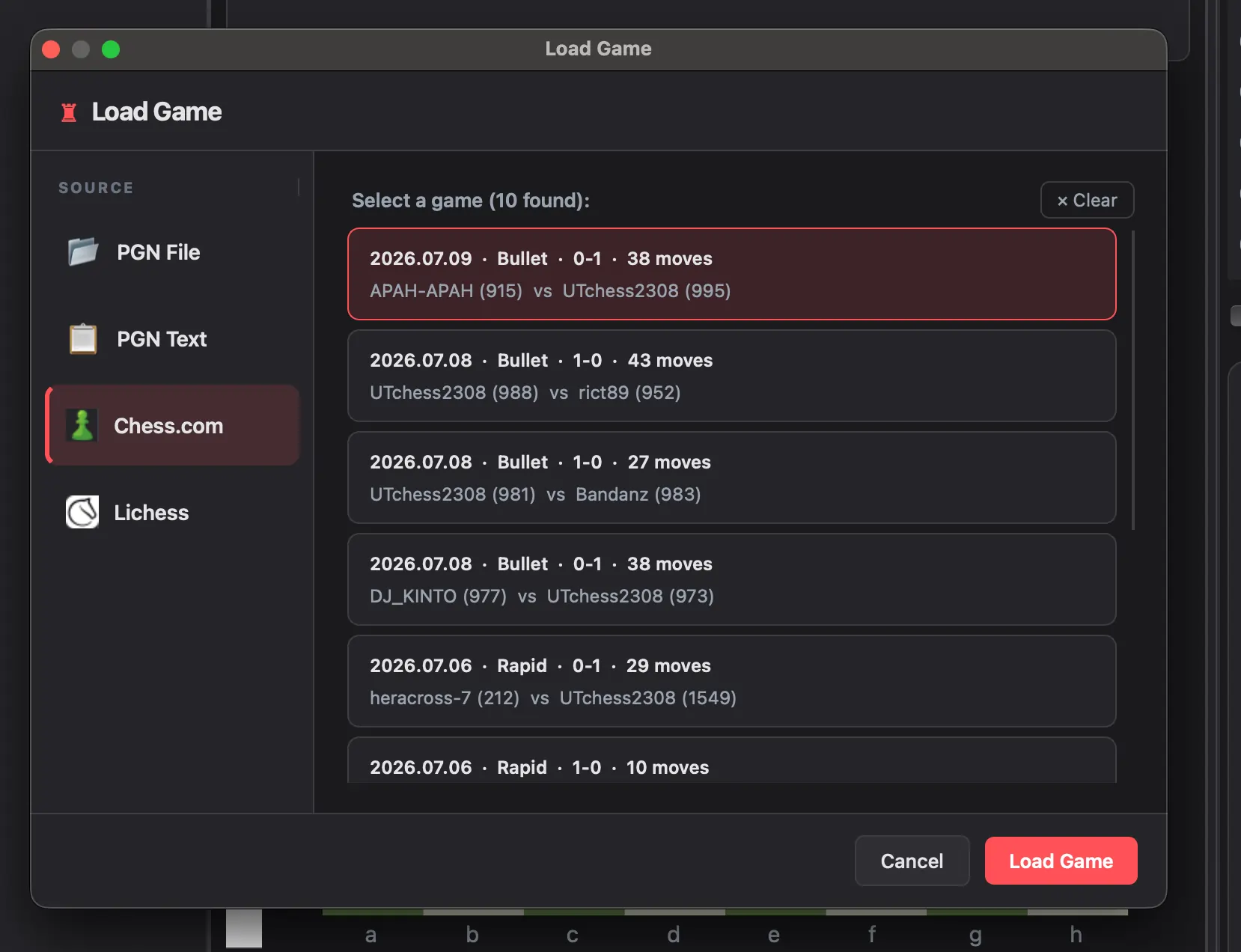 Game selection list with metadata
Supported Sources
| Source | Methods | Features |
|---|---|---|
| PGN File | File browser, drag-and-drop | Multi-game support |
| PGN Text | Direct paste, Ctrl+V detection | Raw notation input |
| Chess.com | Username, game URL | Archive and live game callbacks |
| Lichess | Username, game URL | NDJSON stream, JSON export |
All imported games are saved to your local game history after analysis. See Stats & History for managing your game library.
Ready to analyze your chess games?
Download Chess Analyzer Pro for Windows, macOS, or Linux. 100% free, private, and open-source.