Game Analysis
Back to Docs
Download Free
Once a game is loaded, click Analyze Game in the sidebar. The Stockfish engine evaluates every move in a background thread.
Live Progressive Analysis (v2.3.0+): Analysis streams in real time. As each move is evaluated by Stockfish, its classification badge, centipawn score, best move arrow, and evaluation bar update immediately. You can begin reviewing early opening moves while the background engine continues analyzing the rest of the game.
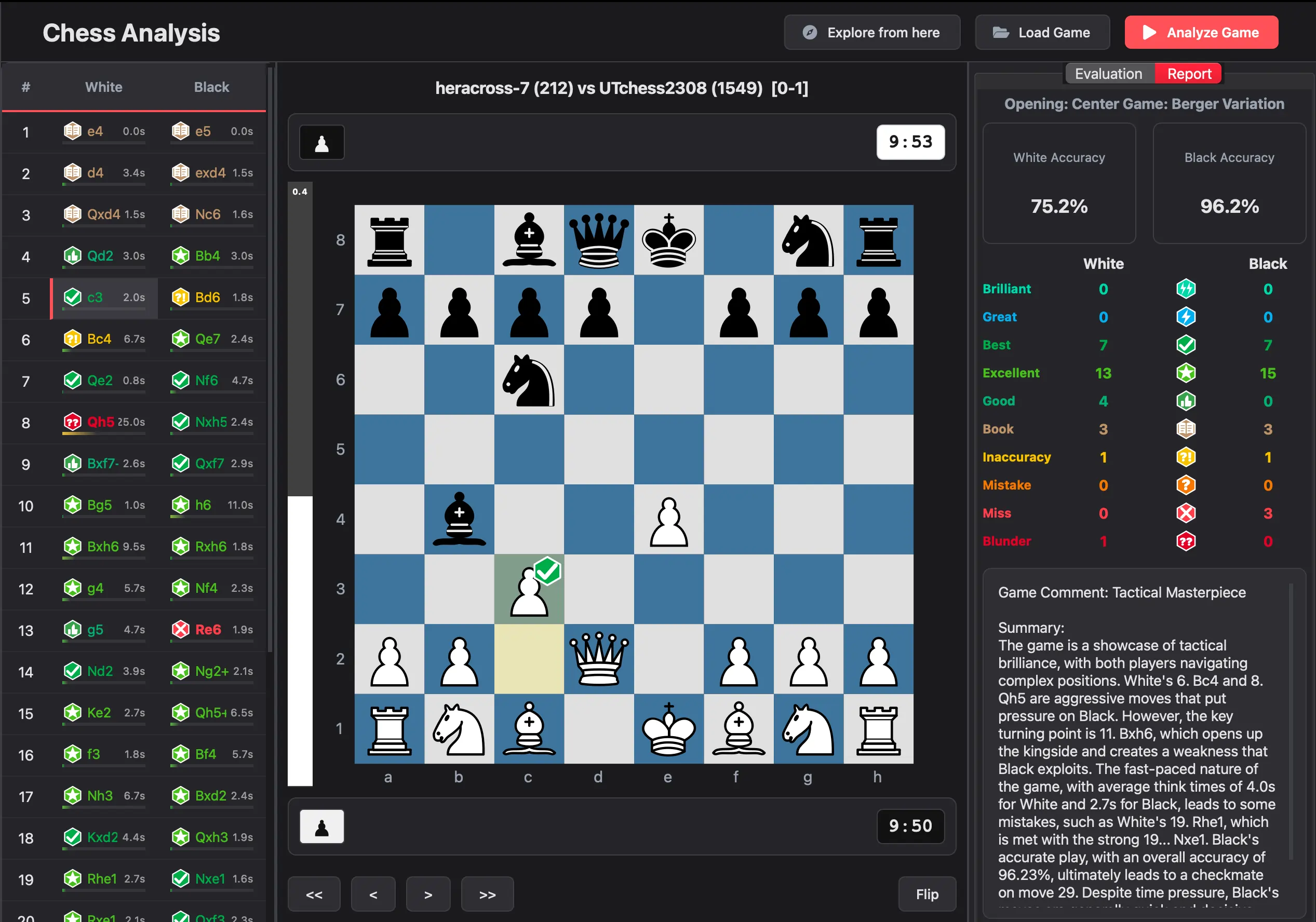 Completed analysis - move list, evaluation graph, and accuracy scores
Analysis Results
As analysis runs and completes, every move receives:
- Accuracy score (0–100%) per move
- Move classification (Brilliant, Great, Best, Excellent, Good, Inaccuracy, Mistake, Blunder, Miss, Book)
- Engine evaluation in centipawns or mate distance
- Best continuation (the top engine line for that position)
- Evaluation graph showing game momentum over time
Both sides get an overall game accuracy percentage, average centipawn loss (ACPL), and a breakdown of classification counts.
Game Termination & POV Results (v2.3.0+)
The app automatically detects how the game ended and displays visual badges:
- Checkmate: Final position is checkmate
- Resignation: A player conceded the game
- Timeout / Flag Fall: A player ran out of clock time
- Stalemate: No legal moves available
- Threefold Repetition / 50-Move Rule: Draw by repeated position or move rule
- Insufficient Material: Neither side has mating material
- Abandonment: Player left the game
The result banner is POV-aware — if you configure your username, it displays victory or defeat relative to the side you were playing rather than generic notation.
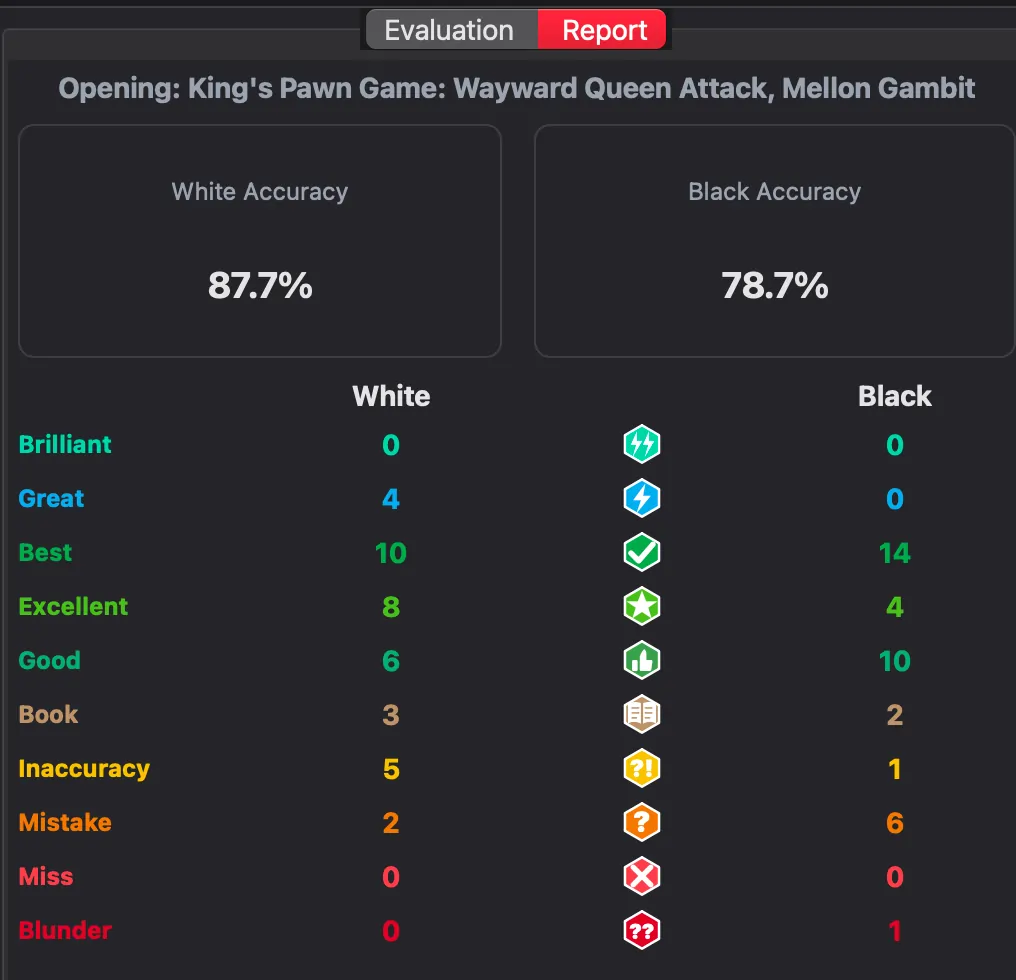 Game report -detailed analysis summary
Move Classification Reference
Moves are classified using win probability loss (WPL) — how much winning chance was lost compared to the best move.
| Icon | Classification | Color | Meaning |
|---|---|---|---|
 | Brilliant | ● Teal | Only move that holds/improves the position, >40% better than alternatives, position not already winning |
 | Great | ● Blue | Only good move in the position, >15% better than alternatives |
 | Best | ● Green | Matches engine's top recommendation |
 | Excellent | ● Light Green | WPL < 2% |
 | Good | ● Green | WPL 2%–4.5% |
 | Book | ● Brown | Move matches known opening theory |
 | Inaccuracy | ● Yellow | WPL 4.5%–8% |
 | Mistake | ● Orange | WPL 8%–19% |
 | Miss | ● Red | Missed a forced mate or winning opportunity |
 | Blunder | ● Red | WPL ≥ 19%, losing position |
Special cases:
- Checkmate and positions held at ≥99% winning chance are always classified as Best
- Brilliant requires the best move to be >40% better than alternatives, the position to have improved from a non-winning state, and the resulting position to be at least equal
- Book is assigned when a move matches known opening theory (not by the WPL classifier)
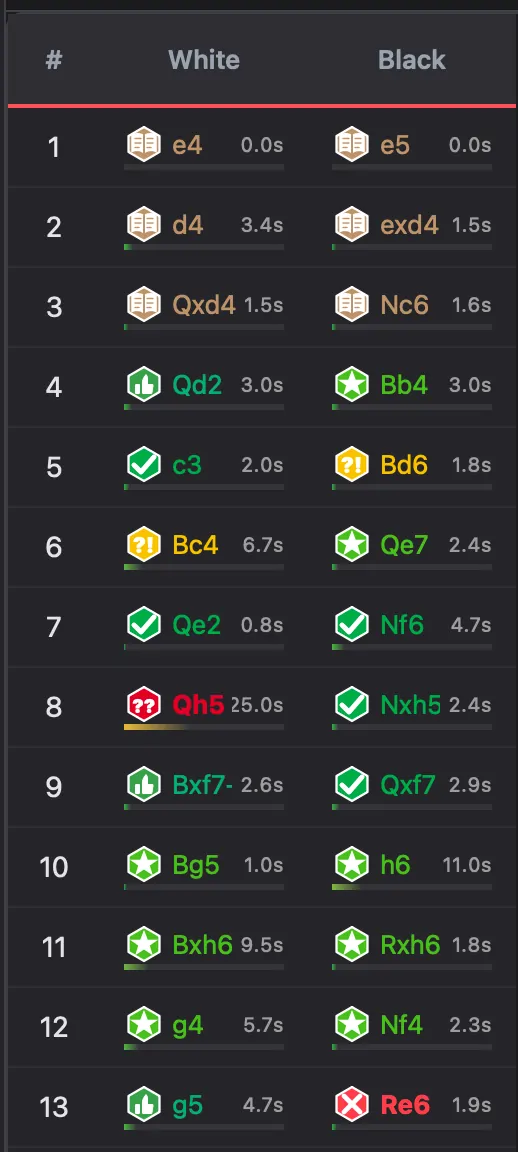 Move list with classification badges
Navigation
| Action | Method |
|---|---|
| Previous move | Left Arrow key |
| Next move | Right Arrow key |
| First / Last move | Home / End keys |
| Jump to position | Click any point on the evaluation graph |
| Select move | Click any move in the move list |
| Flip board | Press F key or click the flip button |
Evaluation Graph
The graph plots centipawn evaluation for every move. Each data point represents the engine's evaluation after that move.
- Above center: White advantage
- Below center: Black advantage
- Sharp swings: Tactical moments, mistakes, or brilliant moves
- Click any point to jump to that position
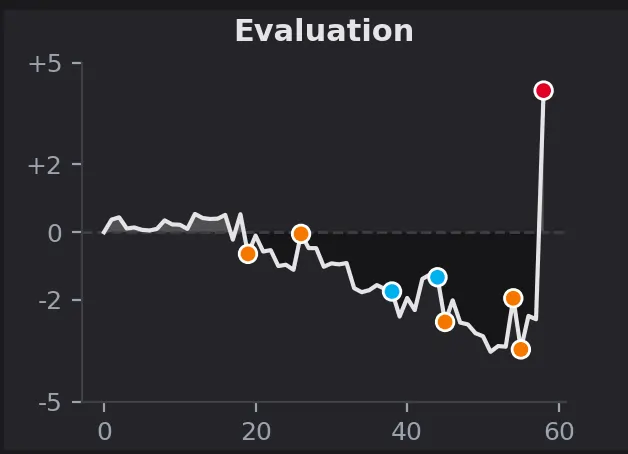 Evaluation graph with clickable data points
Analysis Lines Panel
The right panel shows engine analysis for the selected position:
- Top 3 engine lines with evaluations (when Multi-PV is enabled)
- Move sequence for each variation (principal variation)
- Centipawn score or Mate distance for each line
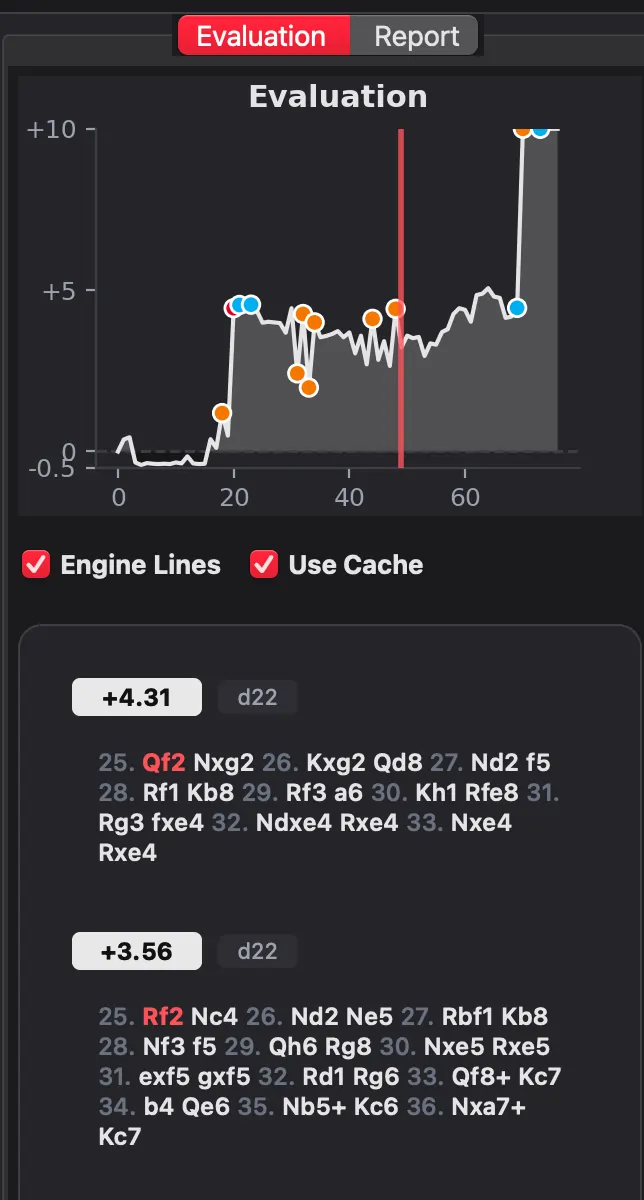 Analysis lines panel -engine variations and evaluations
Dynamic Chess Clocks
When the loaded PGN includes clock data (present in most Chess.com and Lichess games), chess clocks appear next to the captured pieces display.
- Clocks show remaining time per player at each move
- Monospaced font prevents layout shifting as digits change
- When a player drops below 20 seconds, the clock turns red
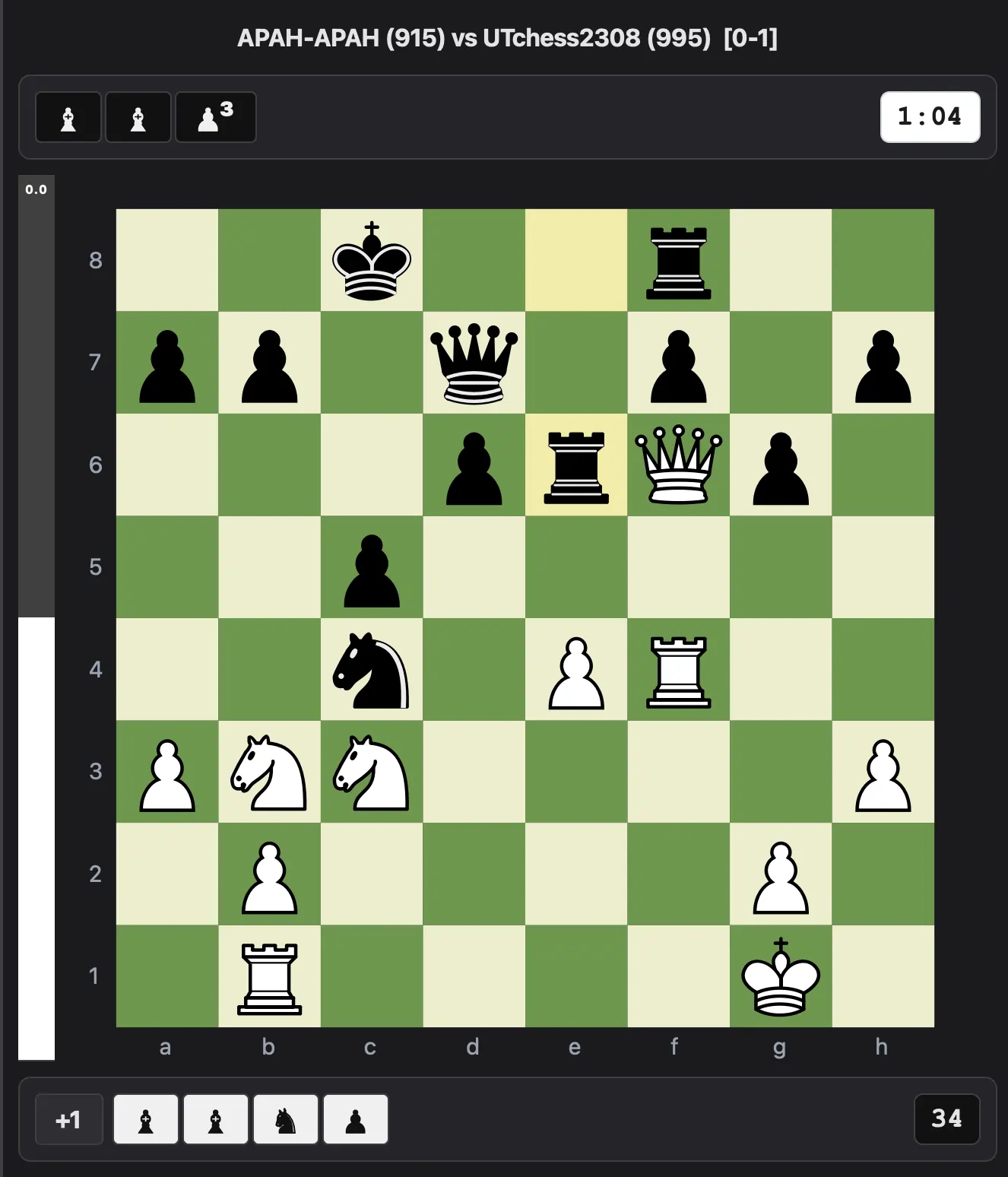 Chess clocks display -time remaining per player
This is useful for reviewing time scrambles -you can see exactly how much time each player had during critical moments.
Keyboard Shortcuts
| Shortcut | Action |
|---|---|
| ← / → | Previous / Next move |
| Home / End | First / Last move |
| F | Flip board |
| Ctrl+O | Open Load Game dialog |
| Ctrl+A | Start analysis |
| Ctrl+T | Replay interactive tour |
| F1 or ? | Show shortcuts help |
Tips
- Right-click any analyzed move and select Explore from here to open the Opening Explorer at that position
- Hover over the evaluation graph to see exact values
- The analysis cache prevents re-analyzing positions you've already evaluated -second analysis is instant
- Classification filters in the move list let you jump between moves of the same type
Ready to analyze your chess games?
Download Chess Analyzer Pro for Windows, macOS, or Linux. 100% free, private, and open-source.