All articles Download
Download App9 min5 min6 min
4 min read
How to Get Free Chess Analysis with Stockfish (Step-by-Step)
Get free chess analysis with Stockfish running locally. Complete guide to downloading, configuring Stockfish, and analyzing unlimited games without paying for subscriptions.
Chess Analyzer Pro
A fast, free, and open-source desktop app for unlimited local game analysis.
Stockfish is the strongest free chess engine in the world. It powers the analysis features on Chess.com, Lichess, and pretty much every other chess platform out there.
But you do not need to go through a platform to use it. You can run Stockfish on your own computer and get unlimited, private, free chess analysis.
This guide walks you through exactly how to set it up.
Why Run Stockfish Locally?
Running Stockfish on your own machine has three big advantages over using a platform's analysis feature:
- It is free. No subscriptions, no daily limits, no premium tiers.
- It is private. All analysis happens on your hardware. Nothing is uploaded.
- It is unlimited. Analyze as many games as you want, whenever you want.
The only thing you need is a desktop application that can talk to the Stockfish engine and manage your game database.
Step 1: Download Stockfish
Go to stockfishchess.org/download/. You will see builds for all major operating systems.
Windows. Choose the AVX2 build if your CPU supports it (most Intel Core 4th-gen and later, all AMD Ryzen). Otherwise pick the modern build.
macOS. Apple Silicon build for M1, M2, M3, and M4 Macs. BMI2 or modern for Intel Macs.
Linux. Same as Windows. AVX2 if supported, modern otherwise.
The binary is a single executable file. No installer. Put it somewhere permanent like C:\ChessEngines\ on Windows or ~/chess/ on macOS and Linux.
Step 2: Get a Stockfish GUI
A GUI, or graphical user interface, is what lets you load games, run the engine, and see the results visually.
Chess Analyzer Pro is a free, open-source desktop application designed for this. It runs on Windows, macOS, and Linux. Download it here.
Step 3: Connect Stockfish to the GUI
Open Chess Analyzer Pro. Go to Settings and click Engine Settings.
- Click Browse next to Stockfish Path and select the binary you downloaded.
- Click Test Engine. A green checkmark means everything works.
That is the minimum setup. You can stop here and start analyzing.
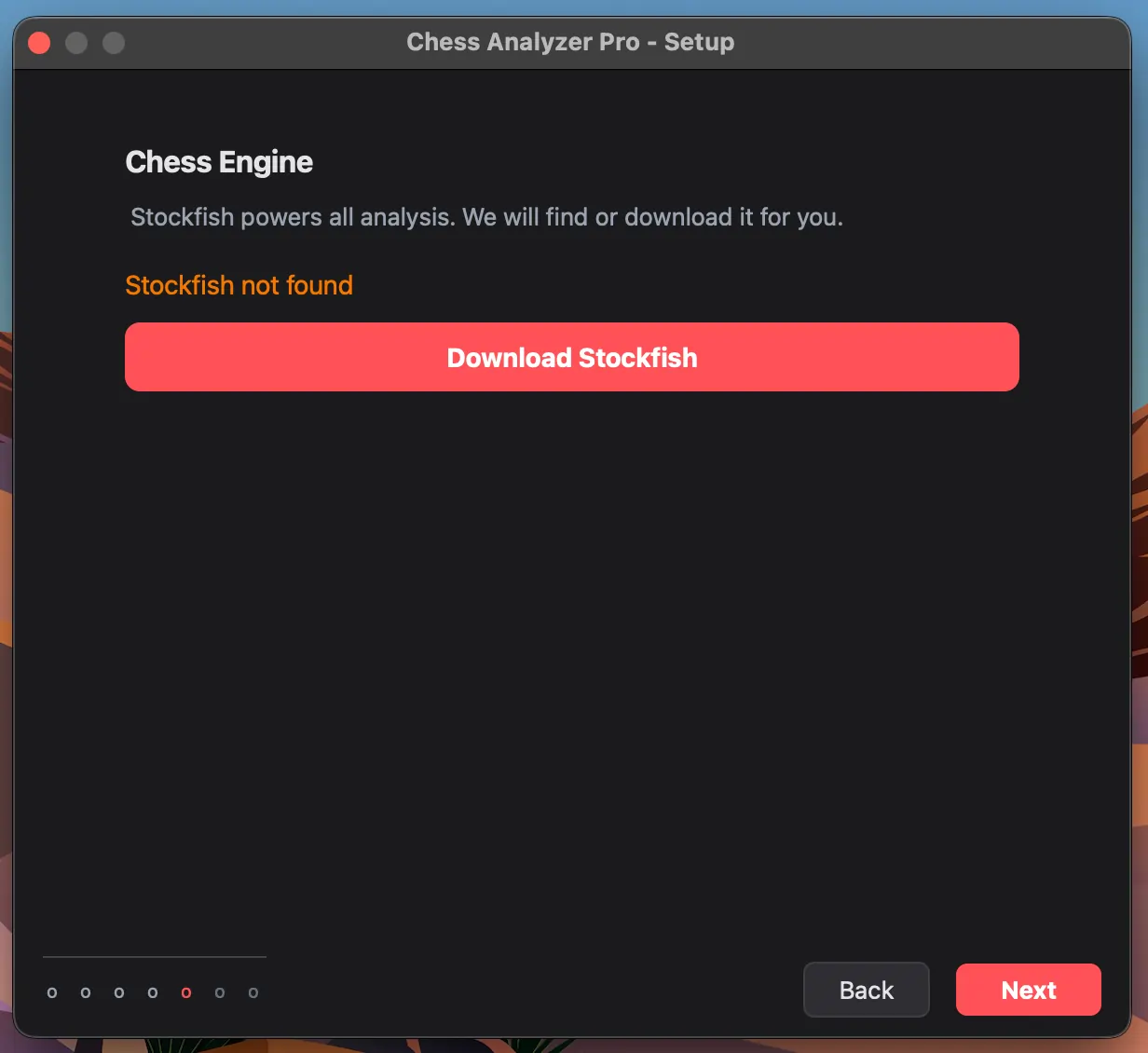 Setup wizard engine step — auto-download option and path configuration
Step 4: Configure for Best Results
Stockfish has several settings that affect analysis speed and quality. Here is what they do.
Threads
Stockfish uses your CPU cores. More threads means faster analysis.
Default: 4 threads. This is a safe balance. Most laptops have 4 to 8 performance cores, and higher settings can cause overheating on thin machines.
If you have a desktop with good cooling, feel free to increase this. Gains start to diminish past 8 threads.
Hash Memory
Hash is the memory Stockfish uses to store positions it has already evaluated. More hash can speed up analysis of complex positions, but it competes with other applications for RAM.
Default: 64 MB. Recommended: 256 to 1024 MB if you have 8 GB or more of RAM.
Leave enough RAM for your OS and browser. Hash only matters during a single analysis session and clears when you close the app.
Analysis Depth
Depth controls how many moves ahead Stockfish searches.
Default: 18 half-moves. Range: 10 to 25.
Depth 22 takes about 3 to 5 times longer than depth 18. Use lower depths for quick game overviews and higher depths for critical positions.
Multi-PV
Controls how many alternative moves Stockfish shows for each position.
Range: 1 to 5. Default: 1.
Setting Multi-PV to 3 or 4 shows you alternatives you might have missed. Each additional line roughly doubles the search time.
Step 5: Start Analyzing
With Stockfish connected and configured:
- Click Load Game or press Ctrl+O.
- Import your game. Paste a Chess.com or Lichess URL, enter your username, or drag in a PGN file.
- Click Analyze Game.
- Stockfish evaluates every move locally and classifies each one.
All results are saved to a local database. You can review them later, track accuracy trends, and export your history.
What Free Analysis with Stockfish Looks Like
After analysis, every move in your game gets:
- An accuracy percentage from 0% to 100%
- A classification label: Best, Excellent, Inaccuracy, Mistake, Blunder, and others
- The top engine continuation for that position
- An evaluation graph showing game momentum
You also get an overall game accuracy score, opening identification, and classification counts. For a detailed breakdown of how each classification works, see Brilliant vs Blunder: How Chess Engines Classify Your Moves.
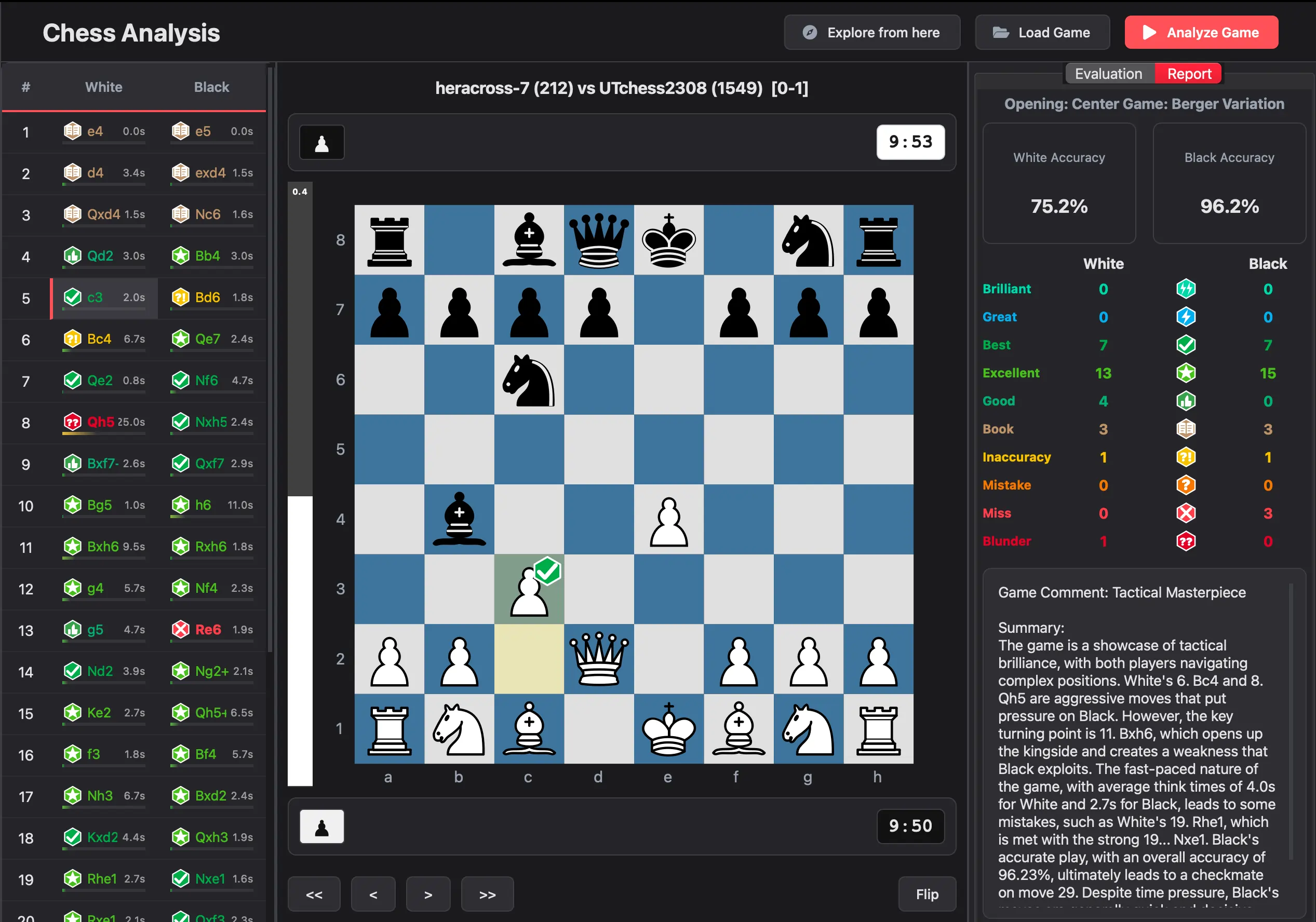 Post-analysis view — move classifications, eval graph, and accuracy percentage
The Bottom Line
Getting free chess analysis with Stockfish takes about five minutes. Download Stockfish, download a GUI, connect them, and start analyzing. No subscriptions, no limits, no data leaving your machine.
Download Chess Analyzer Pro to get started.
Links
- Download Chess Analyzer Pro: chessanalyzer.xyz/releases
- Stockfish Downloads: stockfishchess.org/download/
- GitHub Repository: github.com/imutkarsht/Chess_analyzer
Try Chess Analyzer Pro
Analyze games with Stockfish offline, review blunders, and track your performance—100% free.
Written by
Utkarsh Tiwari
More from the blog
Chess Analyzer Pro v2.3.0: Complete Light Mode, Live Stockfish Analysis & Lichess Opening Explorer
Chess Analyzer Pro v2.3.0 is out. Featuring a full Light Mode with dynamic theming, real-time progressive Stockfish analysis, Lichess Opening Explorer integration, and redesigned game history.
Best Free Stockfish GUIs for Chess Analysis (2026 Guide)
Compare the best free Stockfish GUIs for chess analysis — Arena, Banksia GUI, Chess Analyzer Pro, Scid vs PC, and more. Find the right tool for local analysis.
Chess Analyzer Pro v2.2.0: Custom Themes, Setup Wizard & A Much Better First Day
v2.2.0 is out. This release focuses on the things that matter before you analyze your first game - getting the engine running, looking the way you want, and knowing where everything is.