All articles Download
Download App9 min5 min3 min
6 min read
Chess Analyzer Pro v2.2.0: Custom Themes, Setup Wizard & A Much Better First Day
v2.2.0 is out. This release focuses on the things that matter before you analyze your first game - getting the engine running, looking the way you want, and knowing where everything is.
Chess Analyzer Pro
A fast, free, and open-source desktop app for unlimited local game analysis.
v2.2.0 is out.
This one took a different direction from the last two releases. v2.0 and v2.1 were about adding major analysis features - the unified load dialog, the Analysis Explorer, Polyglot books. This release is more about the experience of using the app.
The first time you open Chess Analyzer Pro. The moment you want to change how the pieces look. The frustration of getting a vague error dialog that doesn't tell you what to do next.
This release tries to fix those things.
Here's what actually changed.
First-Run Setup Wizard
If you're installing Chess Analyzer Pro for the first time, you now get a proper onboarding experience.
Instead of landing in the main window with no context, the app walks you through a multi-page setup wizard that covers:
- Configuring your Stockfish engine path
- Setting up an LLM provider (Groq, LM Studio, or custom)
- Connecting your Chess.com and Lichess accounts
- Choosing your interface appearance
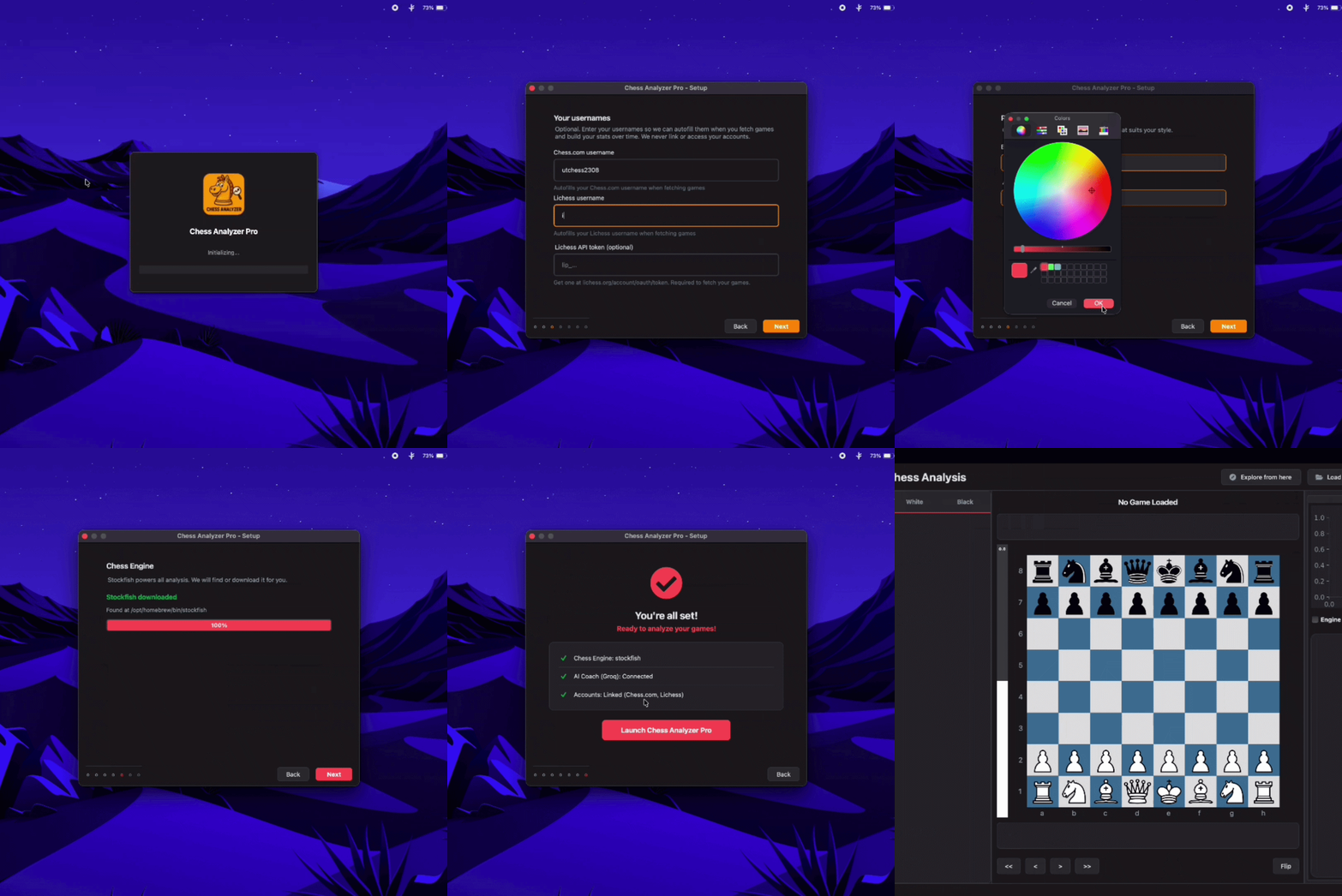 Setup Wizard walkthrough
Each step is optional - you can skip any page and configure it later from Settings. But if you're setting the app up from scratch, this gets you running in a few minutes instead of hunting through settings panels trying to figure out what goes where.
The wizard only appears on first launch. After that, it's out of the way.
Auto-Engine Resolution & Downloader
Getting Stockfish working has been the #1 friction point for new users since v1.0.
In v2.2.0, the app now tries to resolve Stockfish automatically before asking you to do anything. It checks:
- Your saved engine path in config
- Your system PATH
- Common installation locations (Homebrew on macOS, standard install paths on Windows/Linux)
- A local download directory
If none of those work, you get an option to download Stockfish directly from the app - it fetches the latest platform-appropriate binary from GitHub Releases, extracts it, and saves the path automatically. On macOS, it tries Homebrew first before falling back to the GitHub download.
This means most users won't need to touch engine settings at all. They open the app, the wizard runs, and either Stockfish is found or they download it in two clicks.
Custom Piece Theme Import
Chess Analyzer Pro ships with cburnett as the default piece set. It's a clean, widely-used SVG set that works well across board themes. But a single built-in option isn't enough for everyone - people have strong opinions about their pieces.
v2.2.0 adds custom piece theme import.
In Settings → Appearance, there's now an Import Theme... button. Point it at any folder containing 12 SVG piece images (named wK, wQ, wR, wB, wN, wP, bK, bQ, bR, bB, bN, bP) and the app handles the rest.
The import pipeline processes the SVGs - normalizing sizes, handling complex gradient structures, and fixing grouping issues that often appear in community piece sets. The result renders consistently across the board view, captured pieces display, and the Explorer tab.
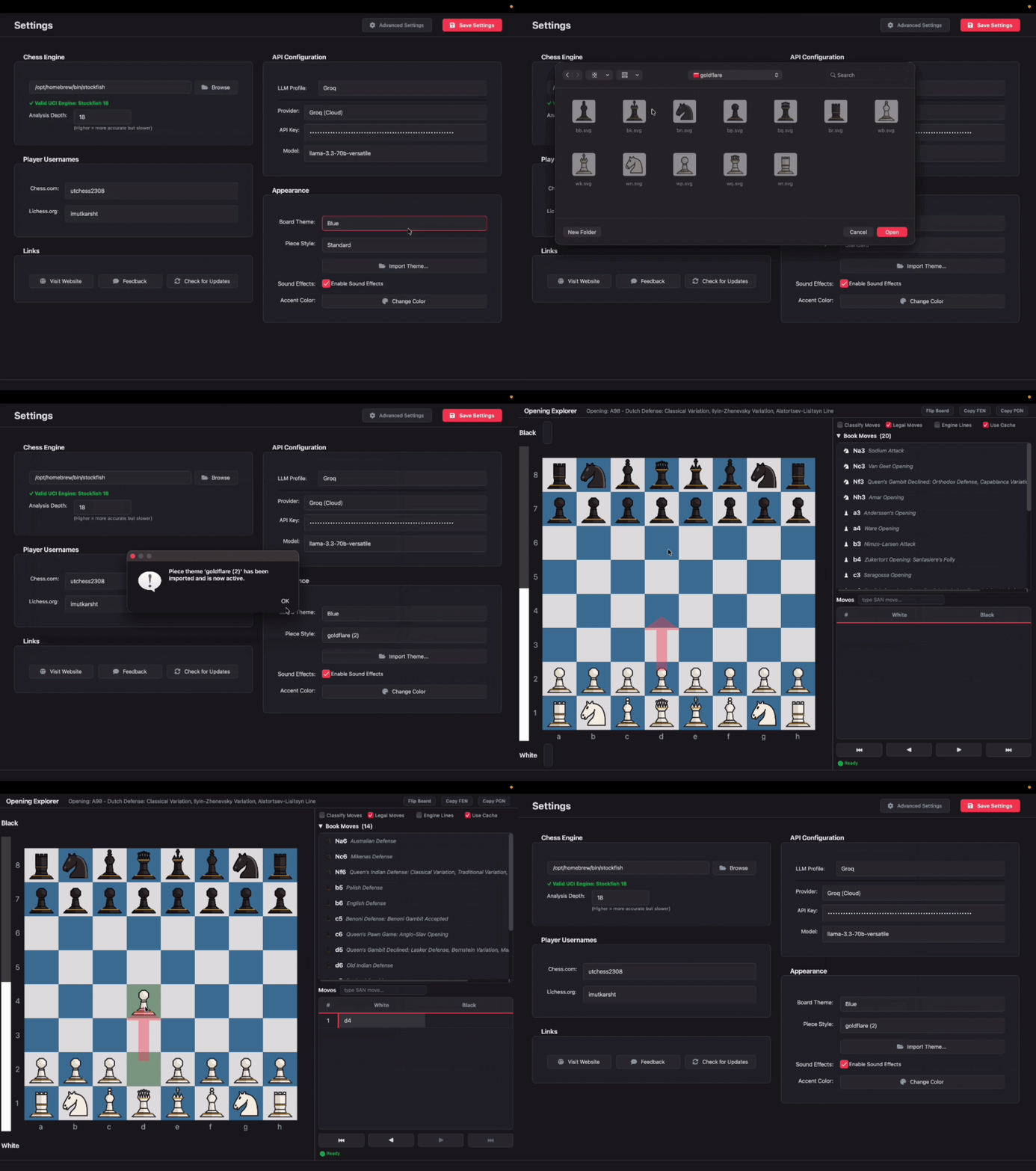 Custom piece theme import
Imported themes are stored locally and show up in the piece theme dropdown alongside the built-in sets. If a theme fails validation (missing files, wrong format), you get a specific error telling you what's wrong rather than a silent failure.
Dynamic Chess Clocks
If your PGN includes clock data - which most games from Chess.com and Lichess do - v2.2.0 now shows live clocks.
The clocks appear next to the captured pieces display and update in real time as you navigate through moves. The display uses a monospaced font so the time doesn't jump around as digits change.
When either player is under 20 seconds, the clock switches to a red alert state. It's a small thing, but if you're reviewing a time scramble and want to understand the decisions being made under pressure, having the clocks visible makes a real difference.
Interactive Tours
v2.2.0 introduces guided tours for the first time.
The tours are designed to be non-intrusive from the start - they don't block the interface or pause your workflow. When a tour is active:
- The relevant UI element gets a pulsing accent glow so it's clear what's being highlighted
- A floating tooltip appears near the target rather than covering the screen
- Everything else in the app stays fully interactive - you can actually try things while the tour is running
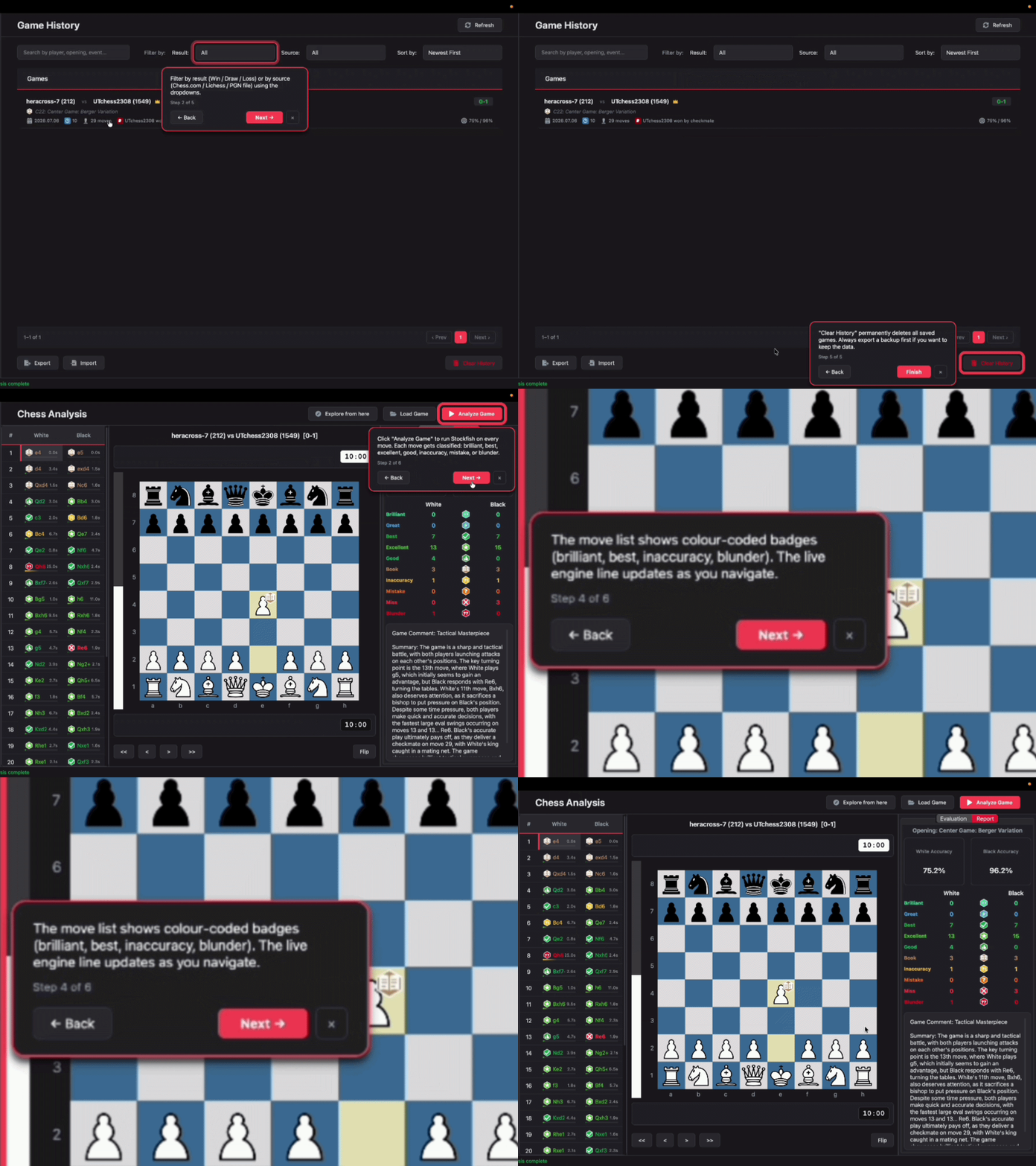 Interactive tour with overlay
Tours only trigger when the relevant page content is actually loaded, so you won't see tooltips pointing at empty containers if you navigate quickly. Once a tour step is dismissed, it doesn't repeat.
Basic / Advanced Settings Toggle
The settings panel has grown a lot since v1.0. Engine depth, Multi-PV count, live analysis time budget, book cooldown - most users don't need to touch any of it.
v2.2.0 adds a simple/advanced toggle in Settings. Basic mode shows the things most users care about: engine path, API keys, usernames, appearance, sound. Advanced mode reveals the engine tuning parameters for people who want fine-grained control.
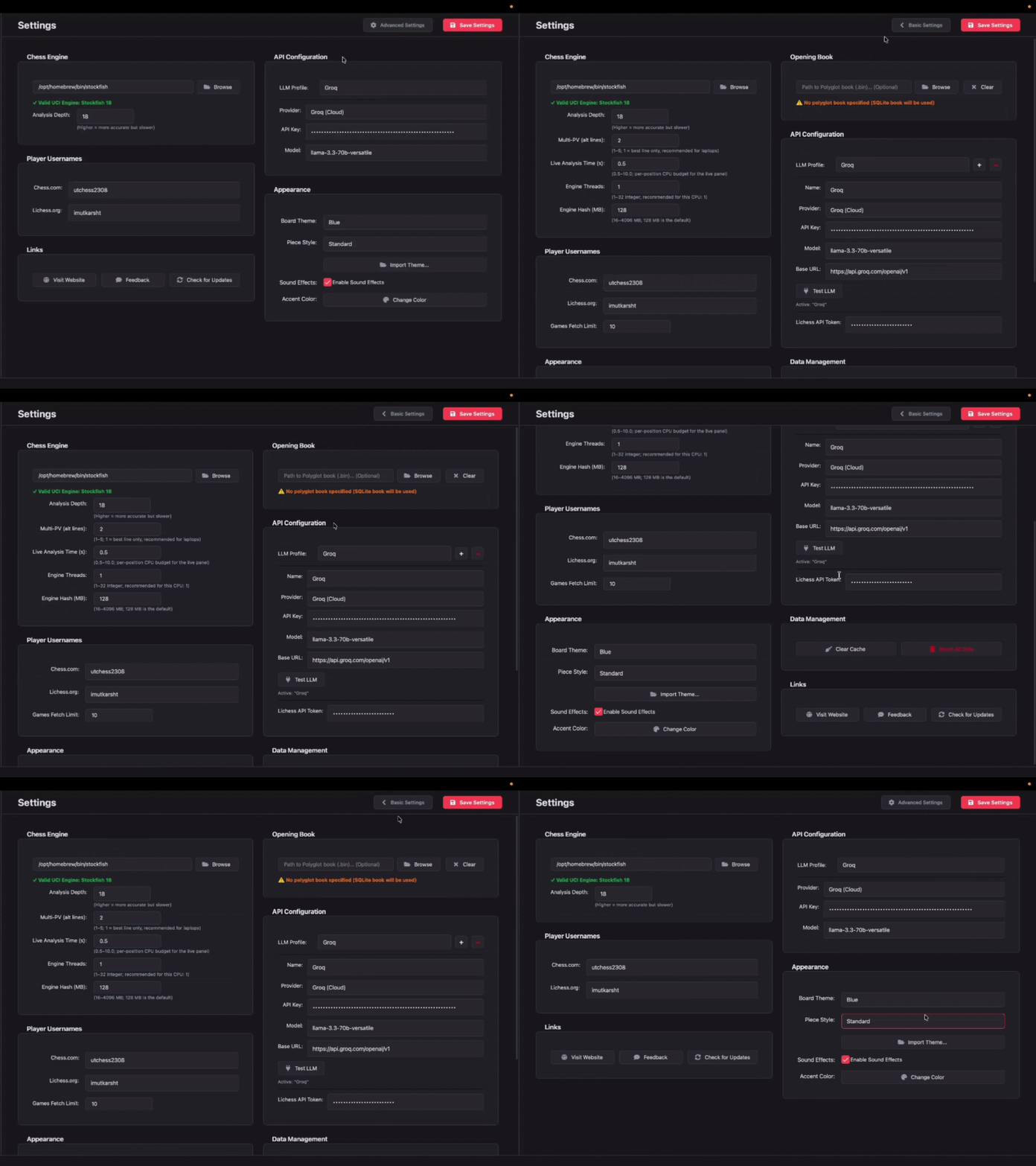 Settings basic/advanced toggle
The toggle state persists across sessions. If you switch to Advanced, it stays Advanced until you switch back.
Context-Aware Error Dialogs
Two new error dialogs replace the generic message boxes that previously appeared when something wasn't configured:
EngineNotFoundDialog - When Stockfish can't be resolved, instead of a plain "Engine not found" message, you get a dialog with a direct link to the engine settings page and an option to trigger the auto-downloader. No copy-pasting paths or hunting through menus.
LlmNotConfiguredDialog - When the AI Summary or Coach features are used without an API key, the dialog links directly to the API settings page and explains what you need (a free Groq key) instead of just saying the feature isn't configured.
Other Changes
Bug Fixes
- Checkmate Evaluation Reversal: Fixed a scoring bug where the final position was evaluated as
Mate(0)instead ofMate(-1), causing the winning side to be reported incorrectly. - Explorer Page Spacing: Resolved a double-layout bug on the Explorer page that was causing a 24px right-shift and coordinate grid overlay misalignment.
- PGN Parsing Guards: PGN files with no playable moves are now rejected with a clear message instead of loading silently. Parse failure dialogs now include a "Try Again" button.
- Label Wrapping: Opening name labels now wrap correctly instead of clipping text. Fixed gray background boxes appearing on labels in global stylesheet.
macOS & Font Polish
The SF Pro font stack is now used where available on macOS. The app bundle also includes a Gatekeeper self-fix that runs on first launch so users don't have to open Terminal and run xattr manually.
Upgrading
If you already have Chess Analyzer Pro installed, the auto-updater will notify you on next launch.
If you're downloading for the first time:
- Windows:
.exeinstaller - macOS:
.dmg - Linux:
.AppImage
Links
- Download v2.2.0: chessanalyzer.xyz/releases
- GitHub Repository: github.com/imutkarsht/Chess_analyzer
- Full Changelog: chessanalyzer.xyz/docs/patch-notes
Try Chess Analyzer Pro
Analyze games with Stockfish offline, review blunders, and track your performance—100% free.
Written by
Utkarsh Tiwari
More from the blog
Chess Analyzer Pro v2.3.0: Complete Light Mode, Live Stockfish Analysis & Lichess Opening Explorer
Chess Analyzer Pro v2.3.0 is out. Featuring a full Light Mode with dynamic theming, real-time progressive Stockfish analysis, Lichess Opening Explorer integration, and redesigned game history.
Best Free Stockfish GUIs for Chess Analysis (2026 Guide)
Compare the best free Stockfish GUIs for chess analysis — Arena, Banksia GUI, Chess Analyzer Pro, Scid vs PC, and more. Find the right tool for local analysis.
Chess Analyzer Pro v2.1.0: Analysis Explorer, Polyglot Books, and Auto-Updates
The latest release of Chess Analyzer Pro adds an interactive opening explorer, support for Polyglot opening books, and cross-platform auto-updates. Here's what changed.